

Inventory and locations
See the movements behind every stock figure. Each change has a date, reason and author, so you can trace how a quantity was reached.
Free plan with 2 users, 100 products and 1 location. No credit card, no time limit.

Why it matters
Trace every quantity
Each stock figure shows the movements behind it, with date and author.
Stock that matches reality
After a count, system quantities match the shelves, and every correction stays documented.
Compare stock over time
Retrieve quantity and value on any past date without archiving old spreadsheets.
How it works
Set up your locations and products once. From then on, every delivery, stock out, transfer and count keeps stock up to date.
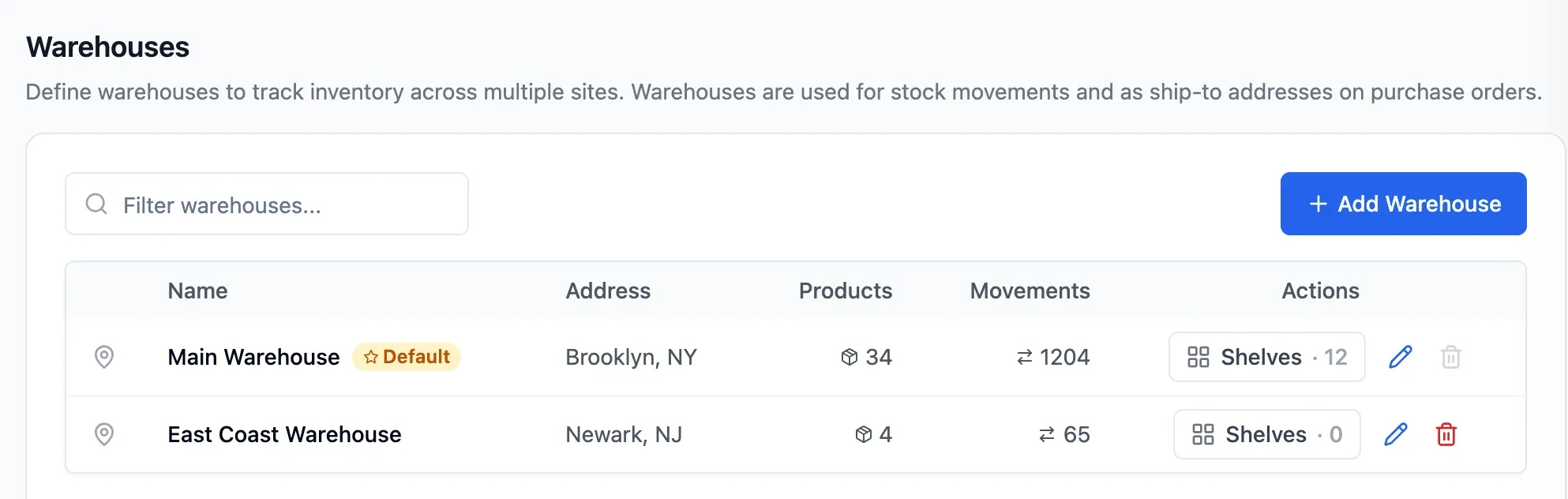
Step 1 of 5
Set up locations and products
Add your warehouses, stores or workshops. Import products from a CSV file or add them one by one, with code, category, supplier and barcode.
- See stock separately at each location
- Bring in your existing product catalogue
- Keep barcodes with product details
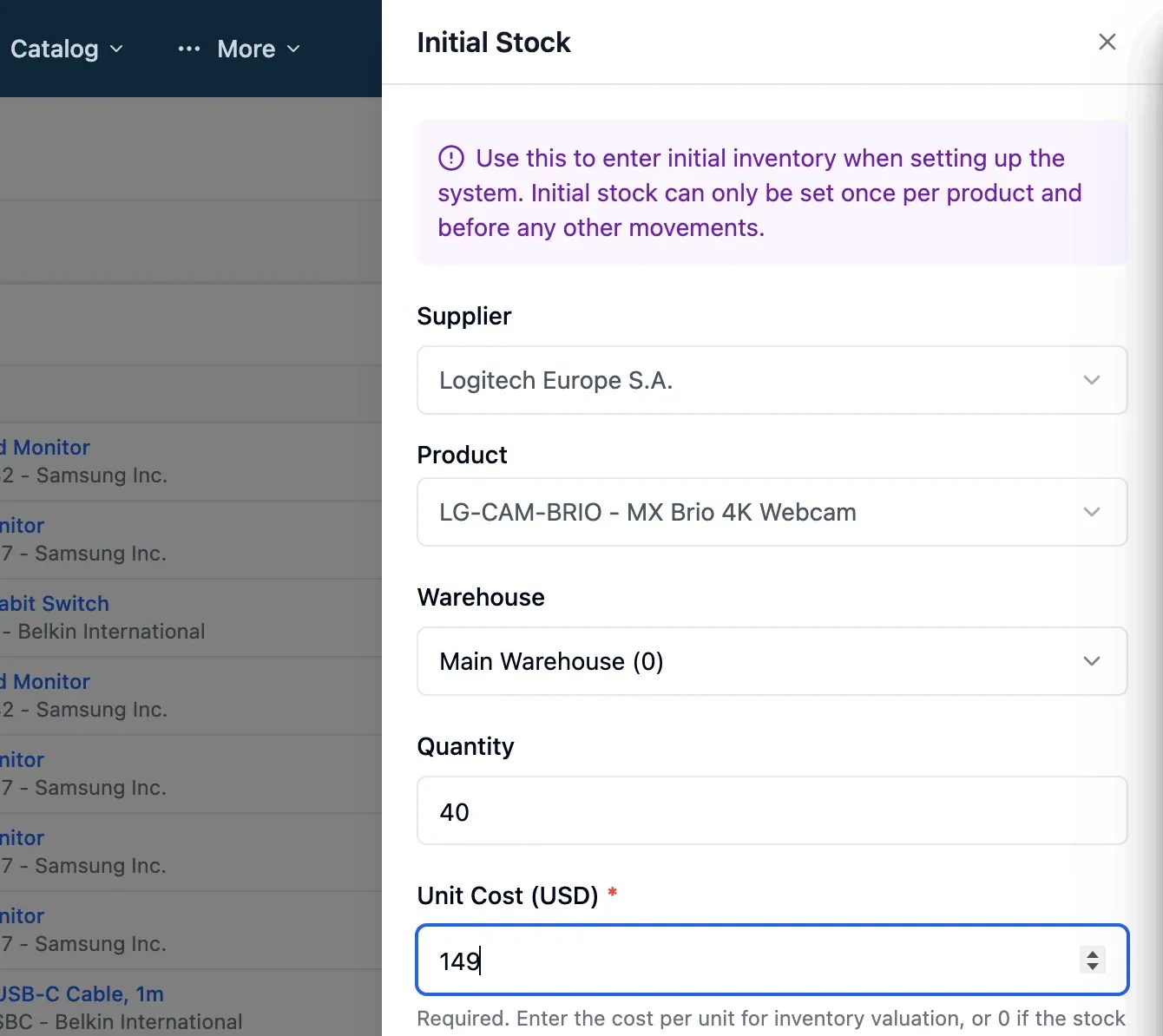
Step 2 of 5
Record opening stock
Enter the starting quantity and cost of each product. From then on, every change becomes a tracked movement.
- Know what your opening stock is worth
- Trace changes back to their source
- Backdated movements cannot create negative stock
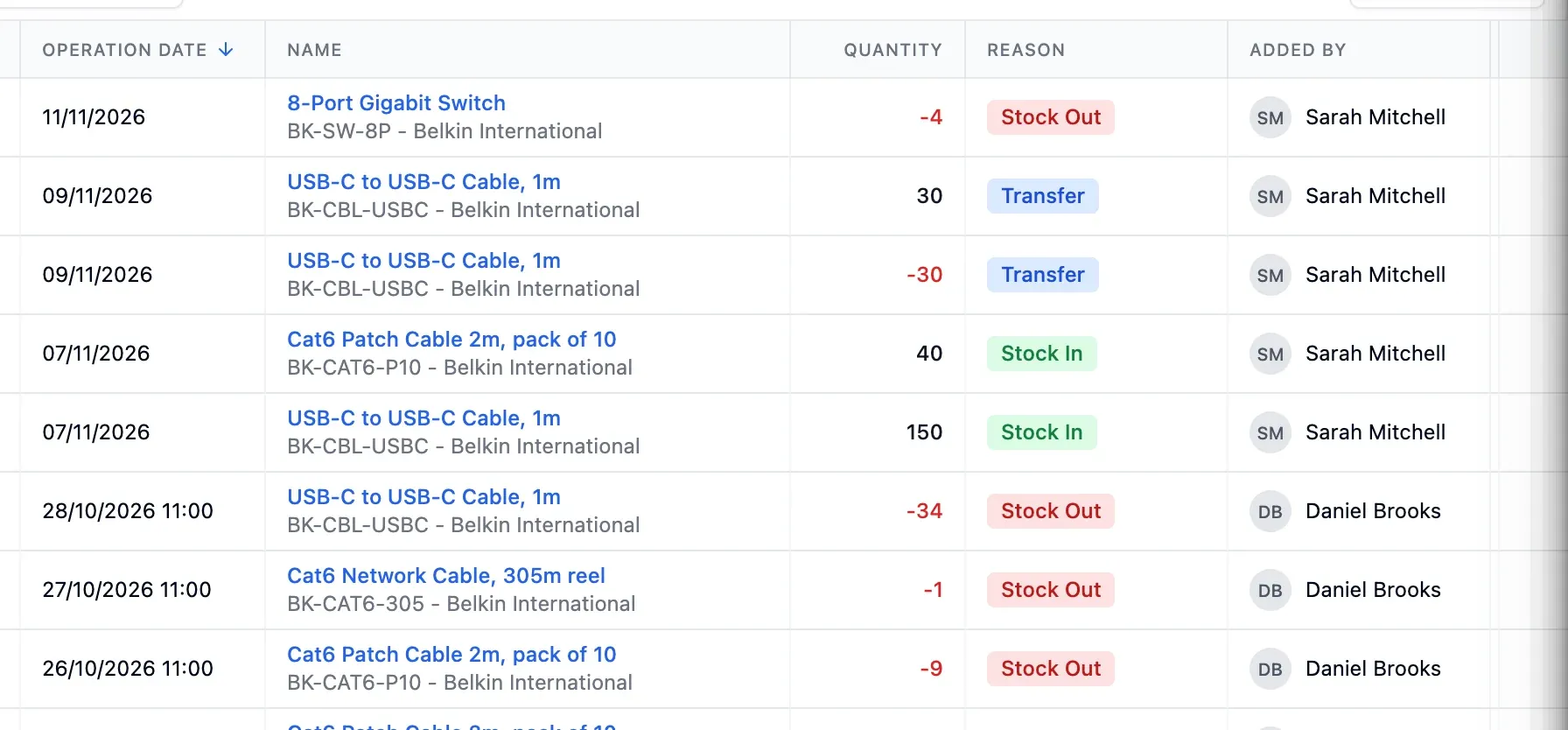
Step 3 of 5
Track goods in and out
Deliveries create movements automatically. Record stock outs and transfers from a computer or from your phone with Scan & Move.
- Receive partial deliveries as they arrive
- Move goods between locations on your phone
- See who recorded each movement

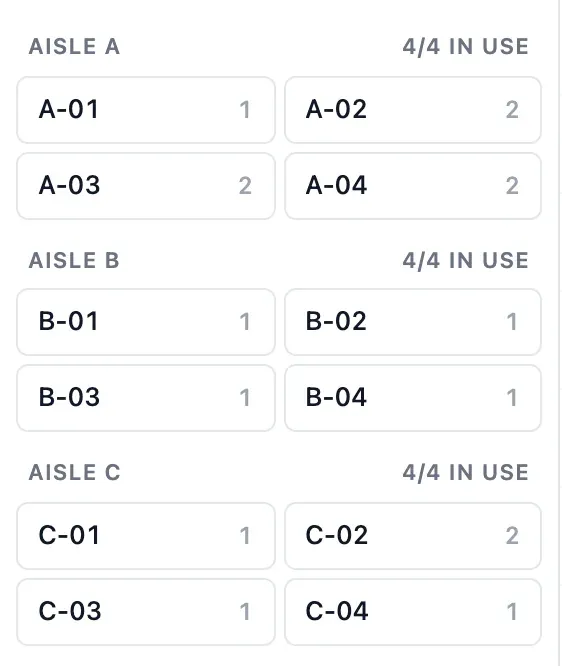
Step 4 of 5
Organise your shelves
Assign shelf positions to the products you choose. Staff can see where to pick them.
- See how much each shelf holds
- Other products stay tracked by location
- Pickers know where to find the goods

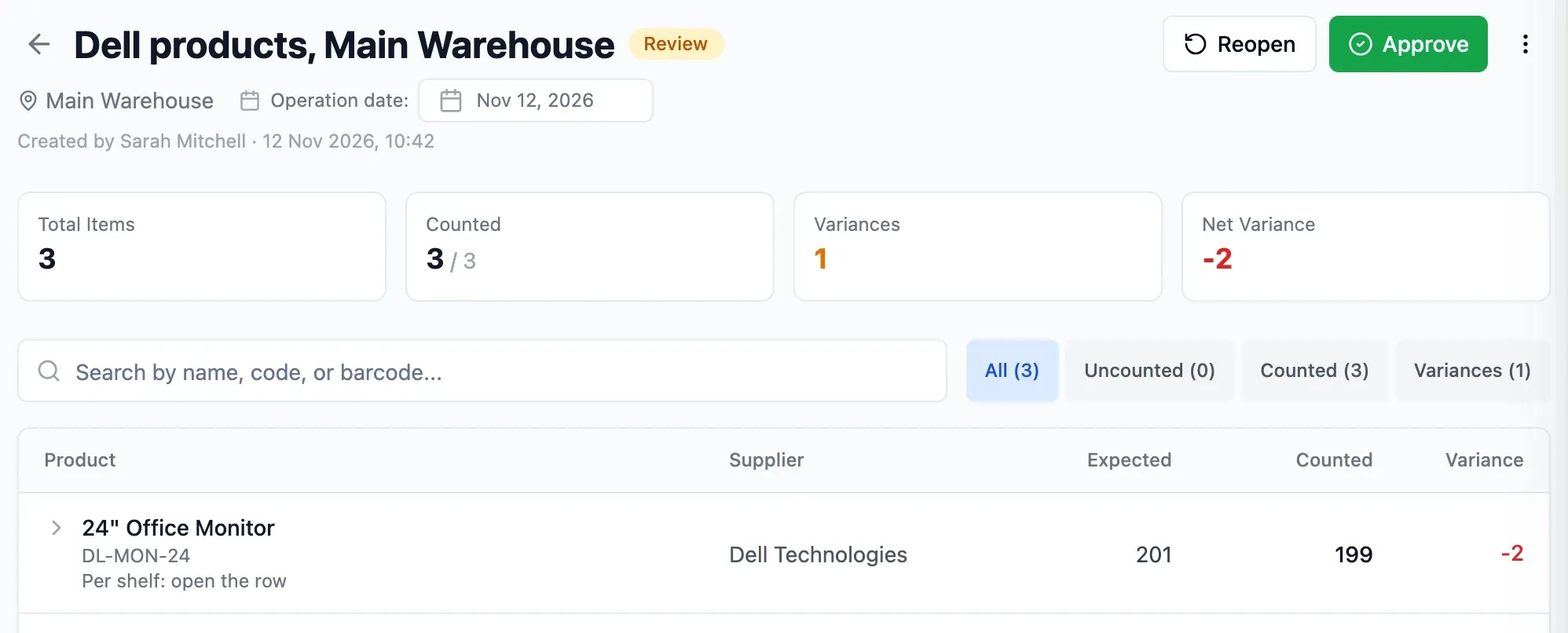
Step 5 of 5
Count and approve
Count a whole location or filter by supplier, category or department, reading barcodes with your phone camera. Approve the count to update stock and record each difference.
- Leave uncounted products unchanged
- Update quantities only after approval
- Keep every correction on record
In detail
No negative stock
Any movement that would take a location below zero is refused, even if backdated.
Know what you can use
Keep faulty units on supplier claims blocked, and reserved assembly parts separate from available stock.
Partial counts
Count a single supplier, category or department. Products you did not count stay unchanged.
Closed years stay closed
Lock a year once the accounts are final. Its orders, deliveries and movements can no longer be changed.
Full history per product
Each product shows its stock by location, movements, documents and notes.
- Start free
Try it free
Free plan with 2 users, 100 products and 1 location. No credit card, no time limit.
Common questions
Another question?
Write to us from the contact page, or search the guides.
Can I see my stock value at year end?
Yes. Pick a past date and check quantity and value by product, supplier or category.
Do I need barcode scanners or an app?
No. StockBold runs in the browser and reads barcodes with your phone camera.
What happens to a location I stop using?
Archive it. Its history stays intact and you can restore it at any time.
Can I record the shelf of each product?
Yes. Record shelf positions for the products you choose.
Can I hide stock values from some users?
Yes. Without the permission to see values, a user sees quantities only.
Try it free
No credit card or time limit. Upgrade when you need more capacity.