

Supplier inbox
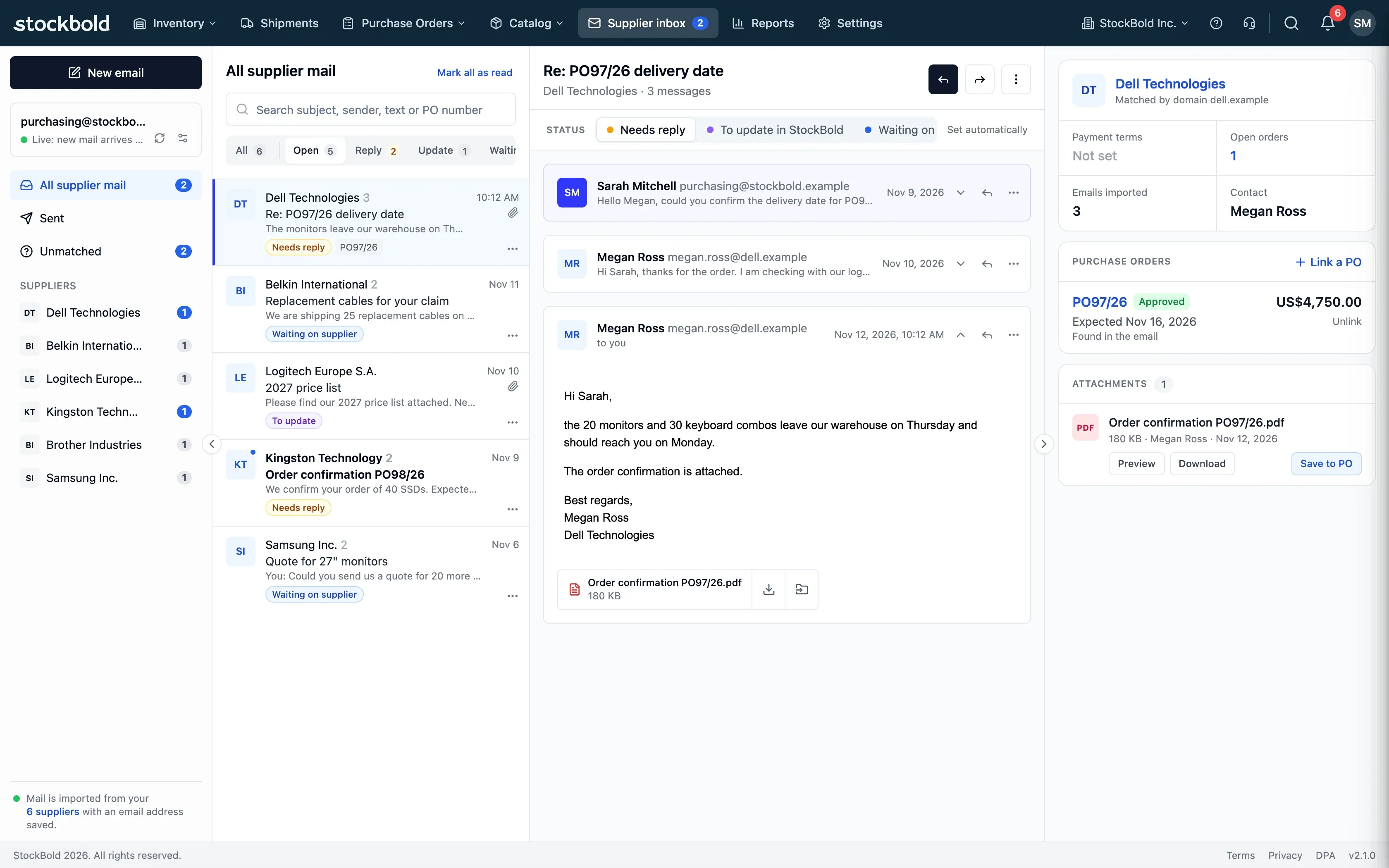
Stop searching mail apps, spreadsheets and PDF folders. See supplier conversations, linked purchase orders and their documents together in StockBold.
Free plan with 2 users, 100 products and 1 location. No credit card, no time limit.
Why it matters
One place for supplier mail
See supplier conversations beside linked purchase orders and their documents in StockBold, instead of searching separate places.
See what needs an answer
Automatic states distinguish conversations that need a reply from those waiting on a supplier.
Documents stay with the order
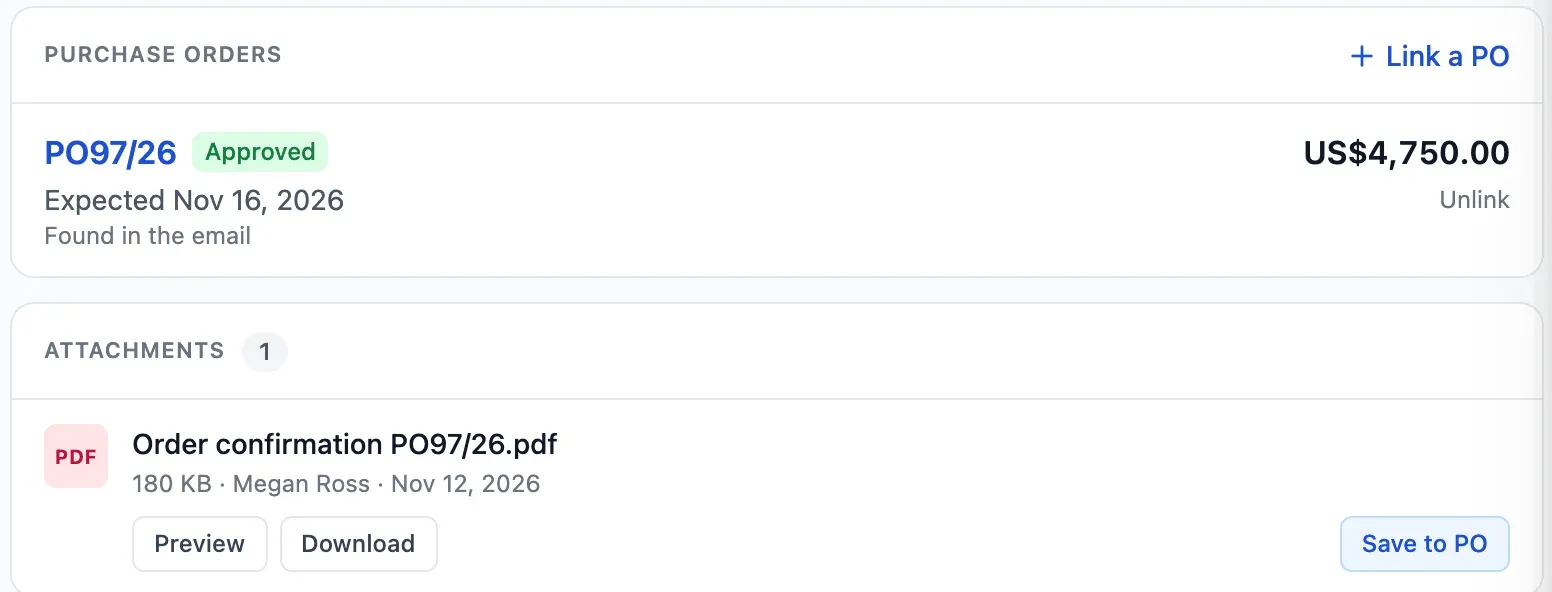
Save an attachment to its linked purchase order so colleagues with access to the order can find it there.
How it works
Connect your mailbox once. From then on, supplier mail is filed by supplier, ready to answer and to link to its orders in StockBold.
Step 1 of 4
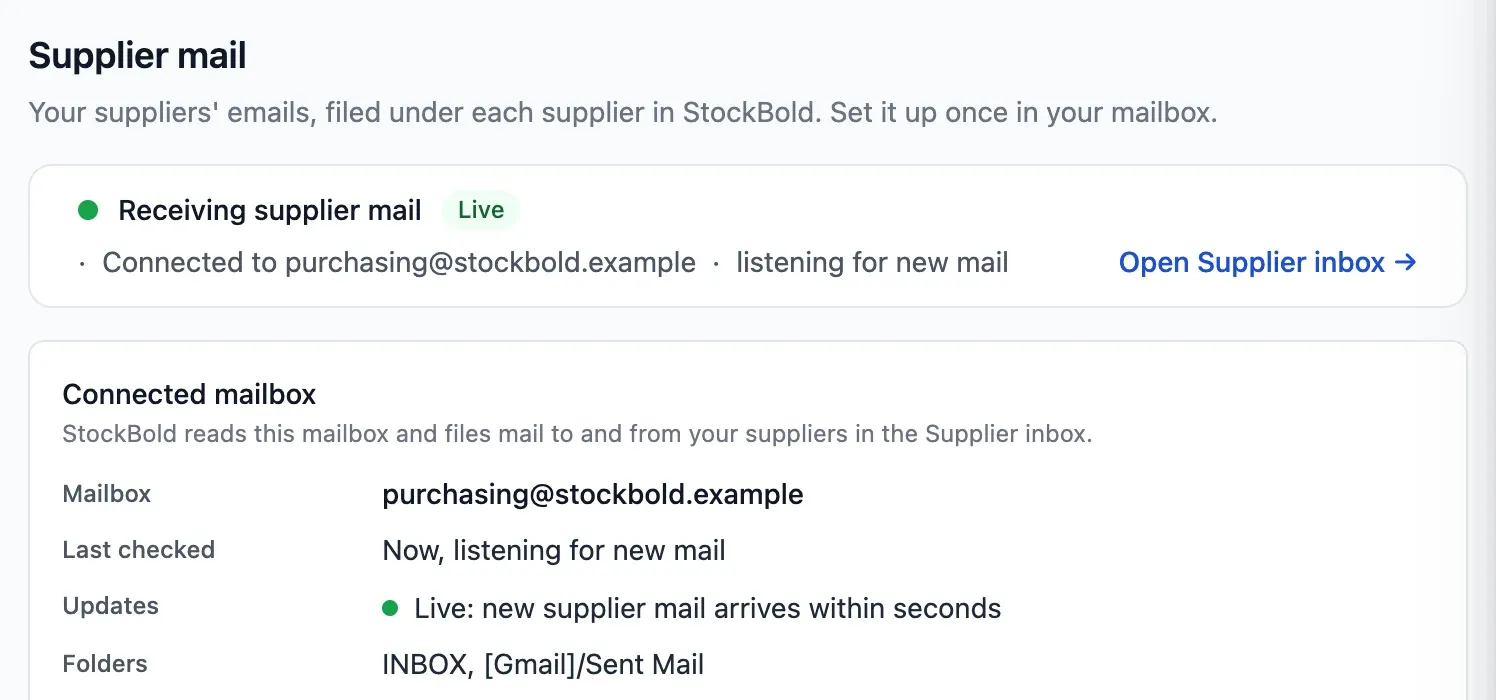
Bring in supplier mail
Choose your provider (Gmail, Yahoo, iCloud, Zoho and more) or enter any mailbox's IMAP and SMTP servers, with an app password. Microsoft 365 and Outlook.com sign in with Microsoft, and any mailbox can forward new mail to your StockBold address instead.
- IMAP reads, SMTP sends from your address
- Only mail with suppliers is downloaded
- Import past supplier mail too
Step 2 of 4
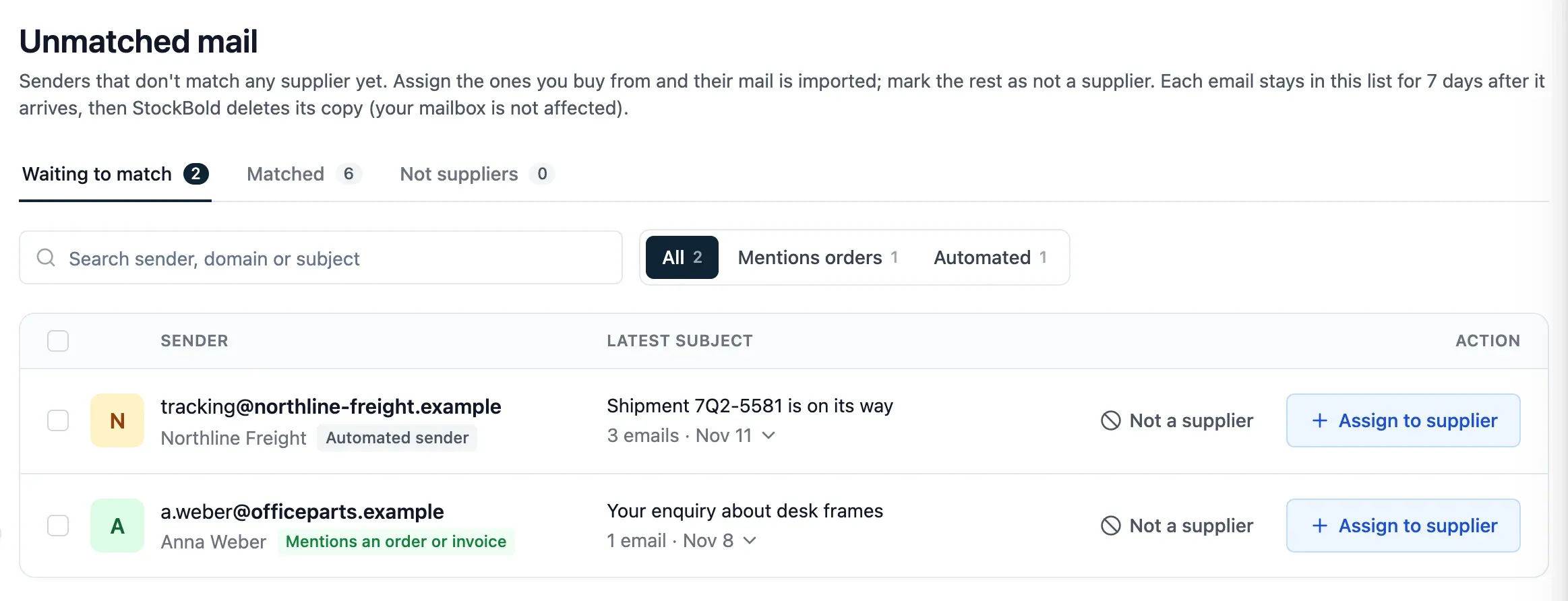
Match senders to suppliers
StockBold matches mail using supplier addresses and domains. Resolve mail in Unmatched by linking its sender to a supplier or marking it as not a supplier.
- Match whole domains or single addresses
- Main contacts and websites help matching
- Unmatched mail waits seven days
Step 3 of 4
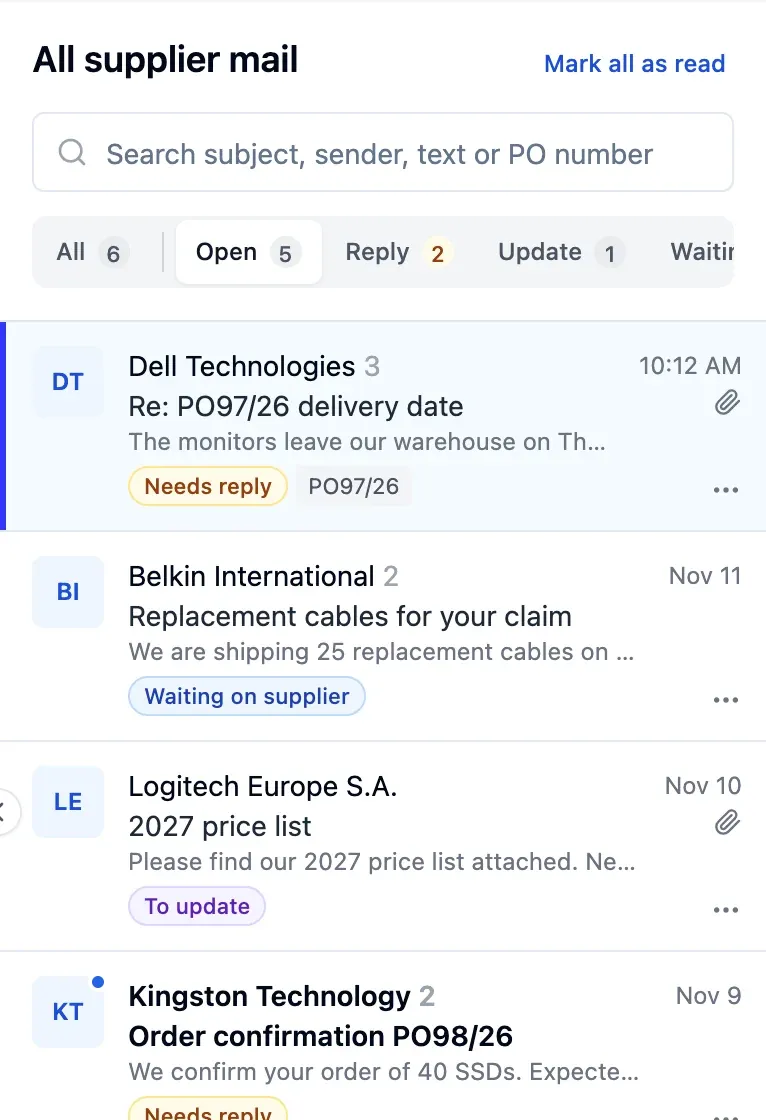
Work through conversations
See which conversations need a reply and which are waiting on a supplier. Link orders by hand, or let PO numbers in the subject or text link them automatically for verified senders.
- Needs reply and waiting set automatically
- Mark conversations to update or done
- Search subject, sender, text or PO number
Step 4 of 4
Write and save attachments
With a connected mailbox that can send, start an email from the inbox or an order, or reply, reply all and forward from your own address. Use Save to PO to share an attachment with colleagues who can see the linked order.
- Attach the order's documents or PDF
- Undo send within six seconds
- A copy lands in your Sent folder
Works with the mailbox you already use
Pick your provider and StockBold fills in its servers, or enter the IMAP and SMTP servers of any other mailbox. You can also forward mail from any address.
- GmailWith an app password
- Microsoft 365Sign in with Microsoft
- Outlook.comSign in with Microsoft
- iCloudWith an app password
- YahooWith an app password
- Zoho MailTurn on IMAP first
 FastmailWith an app password
- GMXTurn on IMAP first
- Any IMAP mailboxEnter the IMAP and SMTP servers
- Any mailboxForward to your StockBold address
In detail
Private and encrypted
Each person sees only their own mail, encrypted with a key of their own. StockBold staff cannot open it.
Unmatched senders
Mail without a single matching supplier waits 7 days in Unmatched. Link an address or domain to a supplier, or mark the sender as not a supplier.
Move a conversation
Move a conversation to the right supplier, and new mail from that address lands there from then on.
New mail alerts
An in-app notification and a pop-up tell you when new supplier mail arrives, without showing its subject.
Deleted for 30 days
Deleting moves mail to Deleted in StockBold for 30 days. It never deletes mail from your mailbox.
Safer reading
Remote images stay hidden until you choose to show them, and senders that fail checks are marked as not verified.
Orders and supplier records
Each purchase order lists its linked emails beside its documents, and each supplier page shows your recent conversations.
Pinned suppliers
Pin up to 50 suppliers to the top of the list, on every device you use.
- Start free
Try it free
Free plan with 2 users, 100 products and 1 location. No credit card, no time limit.
Common questions
Another question?
Write to us from the contact page, or search the guides.
Do I still need my mail app for suppliers?
Not for the supplier mail you handle in StockBold: read it, answer it and save its attachments to orders there. Writing and replying need a connected mailbox that can send, and your mailbox still keeps every message.
Does StockBold read all my email?
No. A connected mailbox downloads only messages to or from your suppliers. With forwarding, you choose what to send to StockBold; mail without a single matching supplier waits in Unmatched for 7 days.
Can my colleagues read my supplier mail?
No. Each person sees only their own mail. If you save an attachment to a purchase order, everyone who can see that order can see the copy.
Does it work with Outlook and Microsoft 365?
Yes. Forward from any mailbox, including Microsoft 365 and Outlook.com. You can also connect either account with Sign in with Microsoft.
Can I write to a supplier from StockBold?
Yes. With a connected mailbox that can send, start a new email to a supplier from the inbox or from a purchase order, or reply, reply all and forward, always from your own address.
Try it free
No credit card or time limit. Upgrade when you need more capacity.